

Interface overview
TomaNote’s interface is split into a few clearly separated regions. On larger screens you get a left sidebar, a horizontal tab strip, the editor and a right sidebar with tools. On smaller screens the toolbars move to a bottom bar.
Left sidebar (desktop)
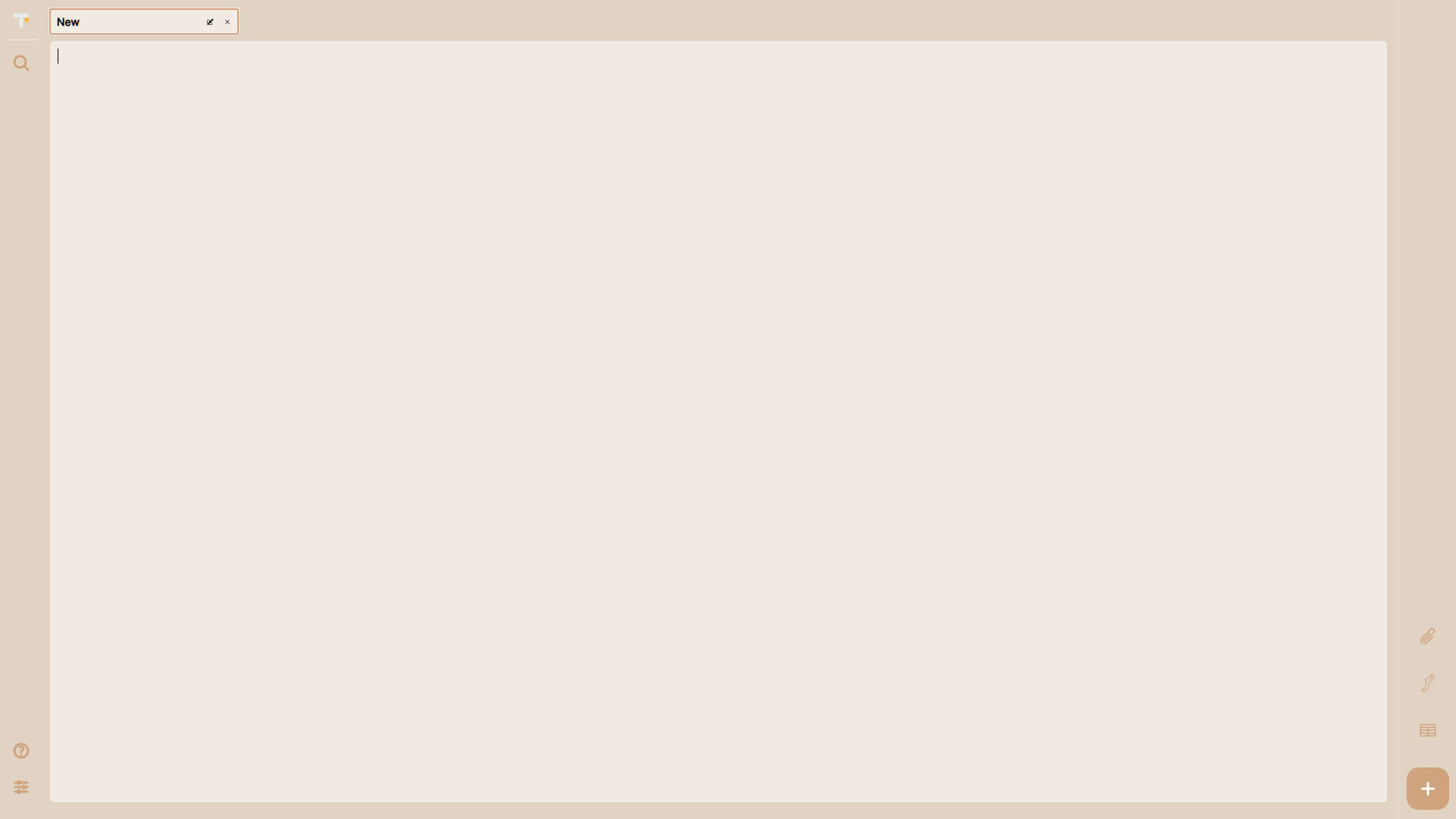
Section titled “Left sidebar (desktop)”The narrow left sidebar gives you quick access to the app’s main actions, each with a tooltip:
- Search — opens the command palette (
Ctrl+K). - Keyboard shortcuts — opens the shortcuts help (
Alt+/). - Settings — opens the settings modal (
Alt+S).
The TomaNote logo sits at the top of the sidebar.
Tab strip
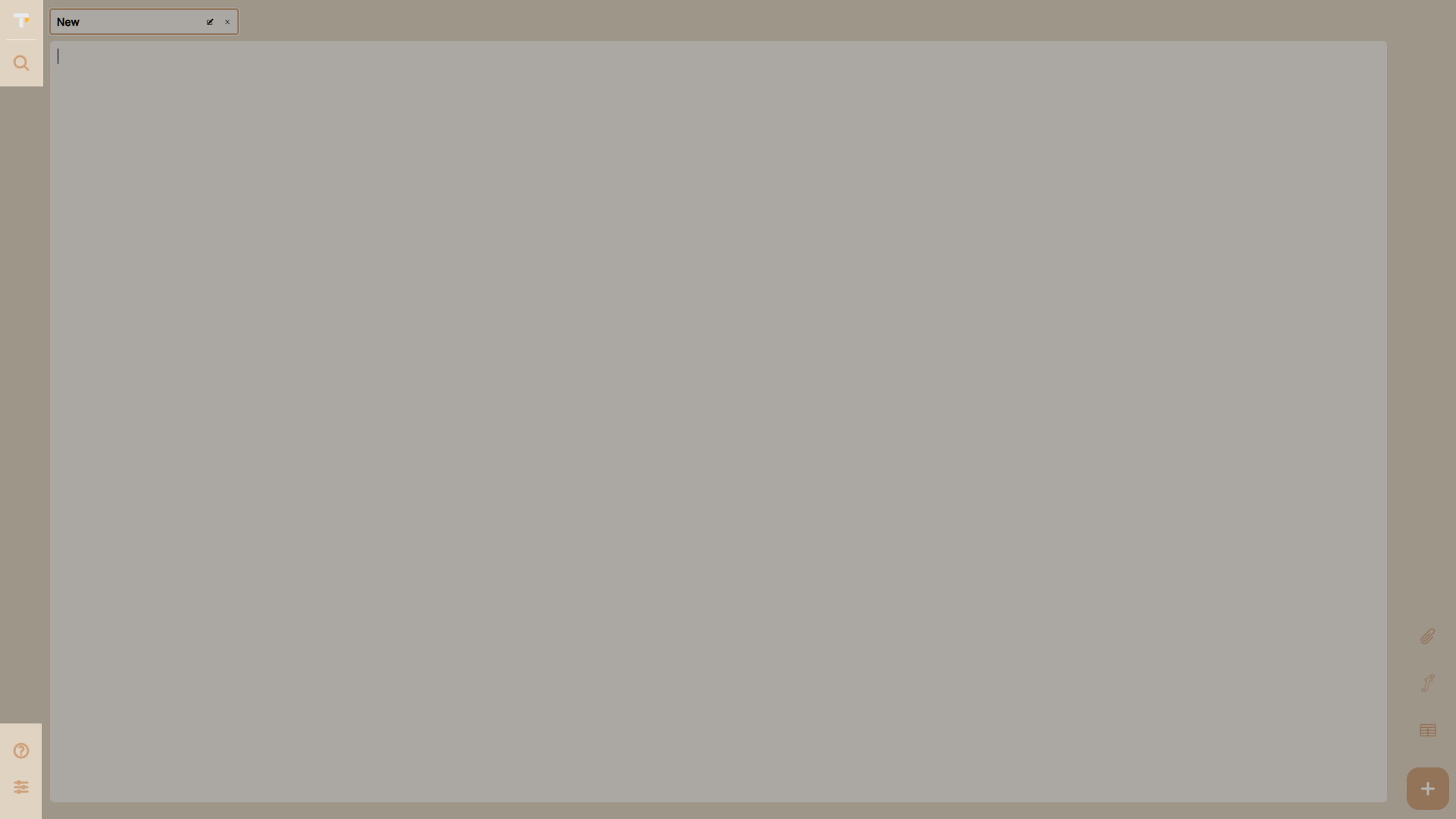
Section titled “Tab strip”Your open notes live as tabs in a horizontal strip at the top of the main area:
- Click a tab to switch to that note.
- Hover a tab to reveal its rename and delete buttons.
- Pinned tabs stay at the front and keep their emoji.
- Drag a tab to reorder it, or press
Alt+1toAlt+9to jump to a specific tab. - Press + (or
Alt+N) to create a new note.
Editor
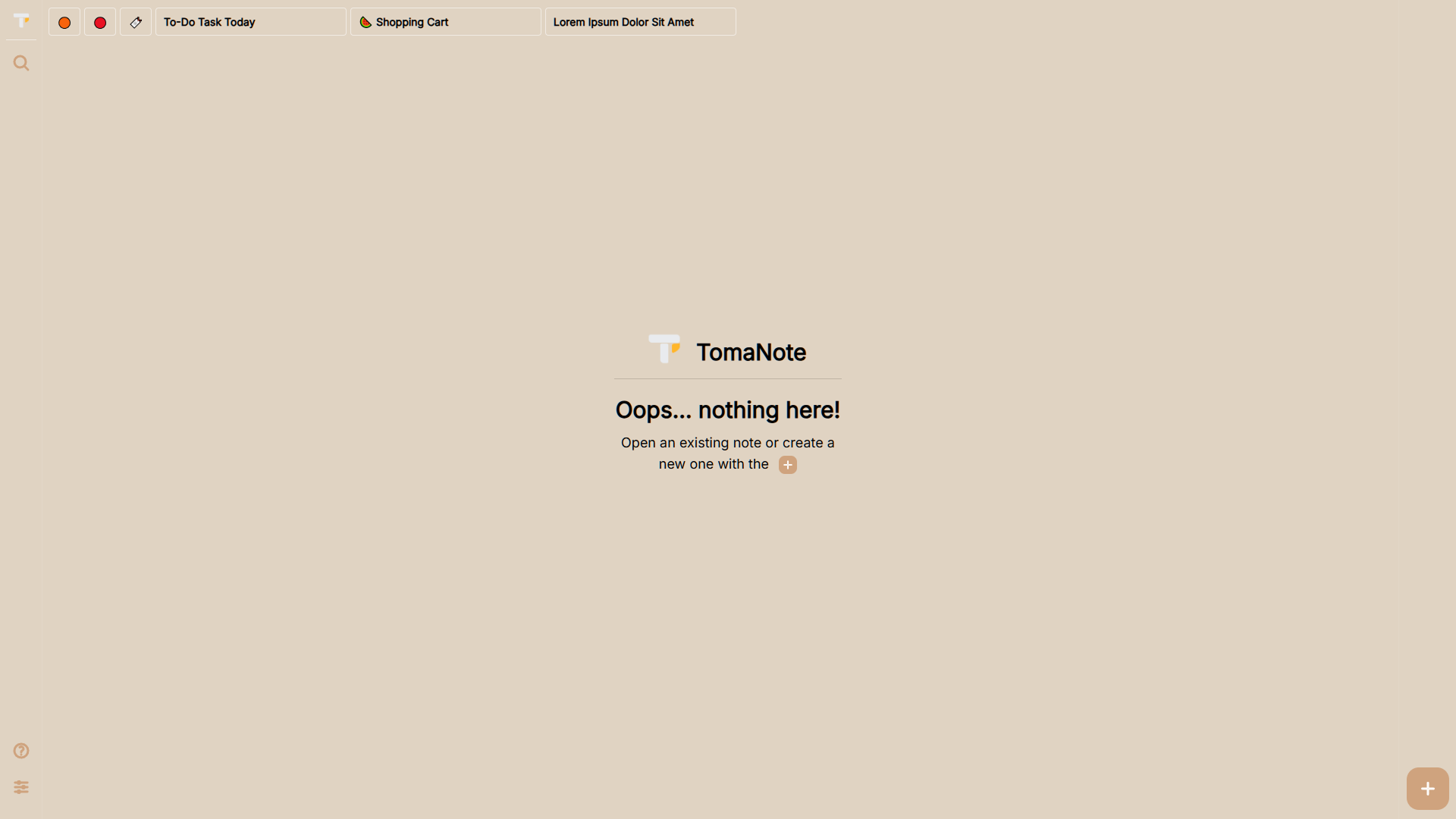
Section titled “Editor”The main area is the editor, where you write. Its paper background can be flat, underlined or gridded (see Settings). When there are no open notes, an empty state appears: “Oops… nothing here!”.
Right sidebar (desktop)
Section titled “Right sidebar (desktop)”On desktop (screens of 768 px and wider) a static panel on the right side hosts the tools:
- + — create a new note.
- Content — redo, undo, copy, paste.
- Font — bold, underline, italic.
- Tab — pin, rename, delete the active tab.
See Tools & right sidebar for details.
Bottom bar (mobile)
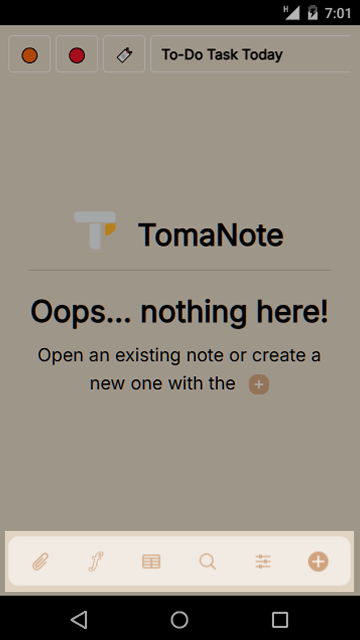
Section titled “Bottom bar (mobile)”On smaller screens the toolbars collapse into a bottom bar with the same Content, Font and Tab groups, plus search, settings and a new note button.
Save indicator
Section titled “Save indicator”When you pause typing, a small Saved indicator appears at the bottom-right of the editor. Ctrl+S shows it instantly.