

Editor & formatting
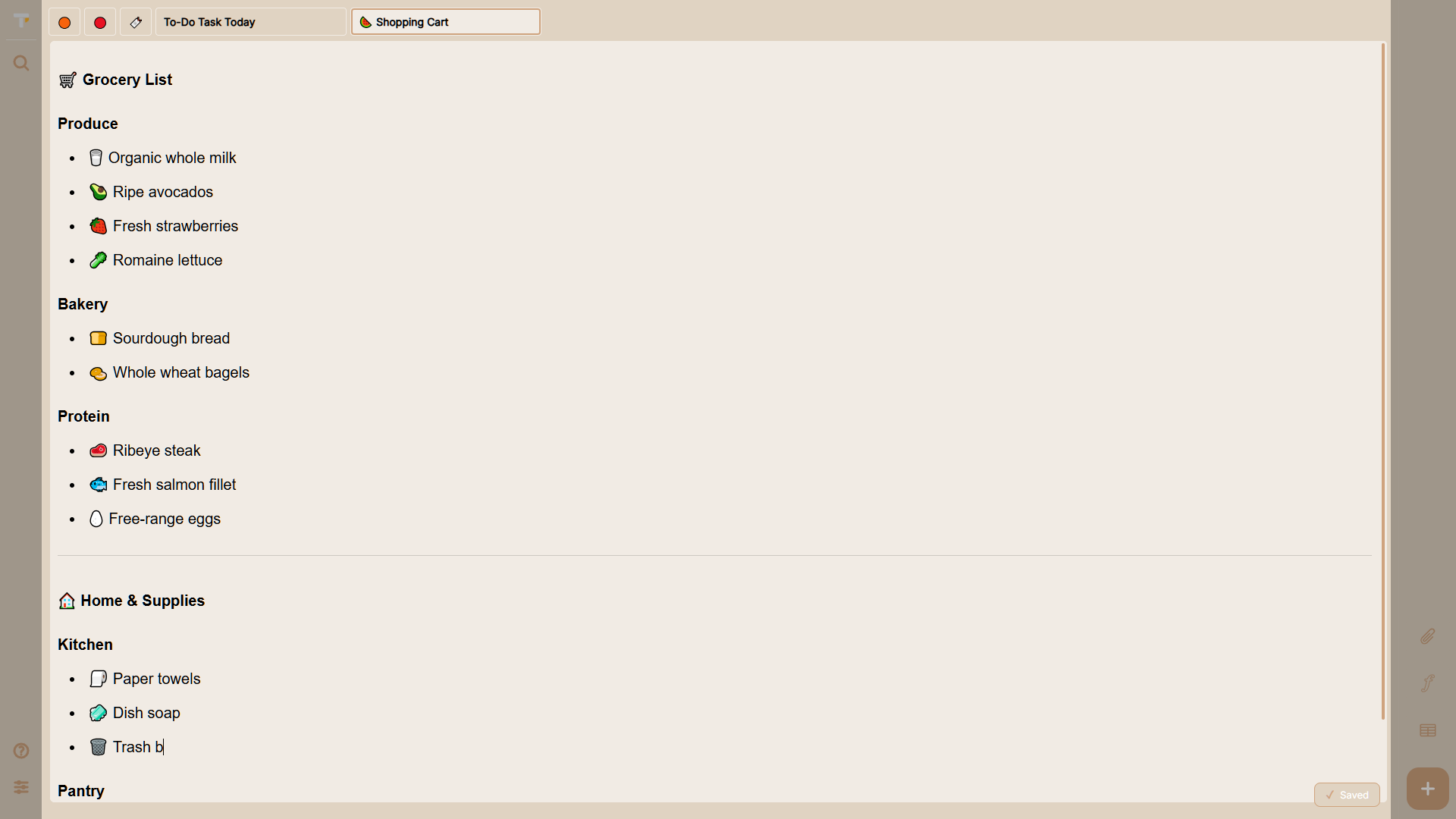
The editor is the main area of the app. Click any open note and start typing. Text is saved automatically as you write.
Rich text engine: Milkdown + ProseMirror
Section titled “Rich text engine: Milkdown + ProseMirror”Since v0.5.6, TomaNote renders and edits notes with Milkdown, a WYSIWYG Markdown editor built on top of the ProseMirror toolkit. This brings robust block-level editing (headings, lists, quotes, code blocks) with real Markdown output — no separate preview mode needed.
Formatting
Section titled “Formatting”TomaNote supports light inline formatting. Select some text and use the Font group in the tools (bold, underline, italic) or the keyboard shortcuts below.
Bold (Ctrl+B)
Section titled “Bold (Ctrl+B)”Bold works as a three-state cycle:
- Normal text.
- Semibold.
- Extrabold.
- Back to normal.
Press Ctrl+B repeatedly (or use the toolbar) to move through the states.
Italic and underline
Section titled “Italic and underline”Ctrl+Iitalicizes the selection.Ctrl+Uunderlines the selection.
Copy, cut and paste
Section titled “Copy, cut and paste”Ctrl+Ccopy ·Ctrl+Xcut ·Ctrl+Vpaste.- Pasting inserts plain text and is undoable (
Ctrl+Z).
Undo and redo
Section titled “Undo and redo”Ctrl+Zundo ·Ctrl+Yredo.
Indenting with Tab
Section titled “Indenting with Tab”Pressing Tab inside the editor inserts four spaces (useful for indentation).
Context menu
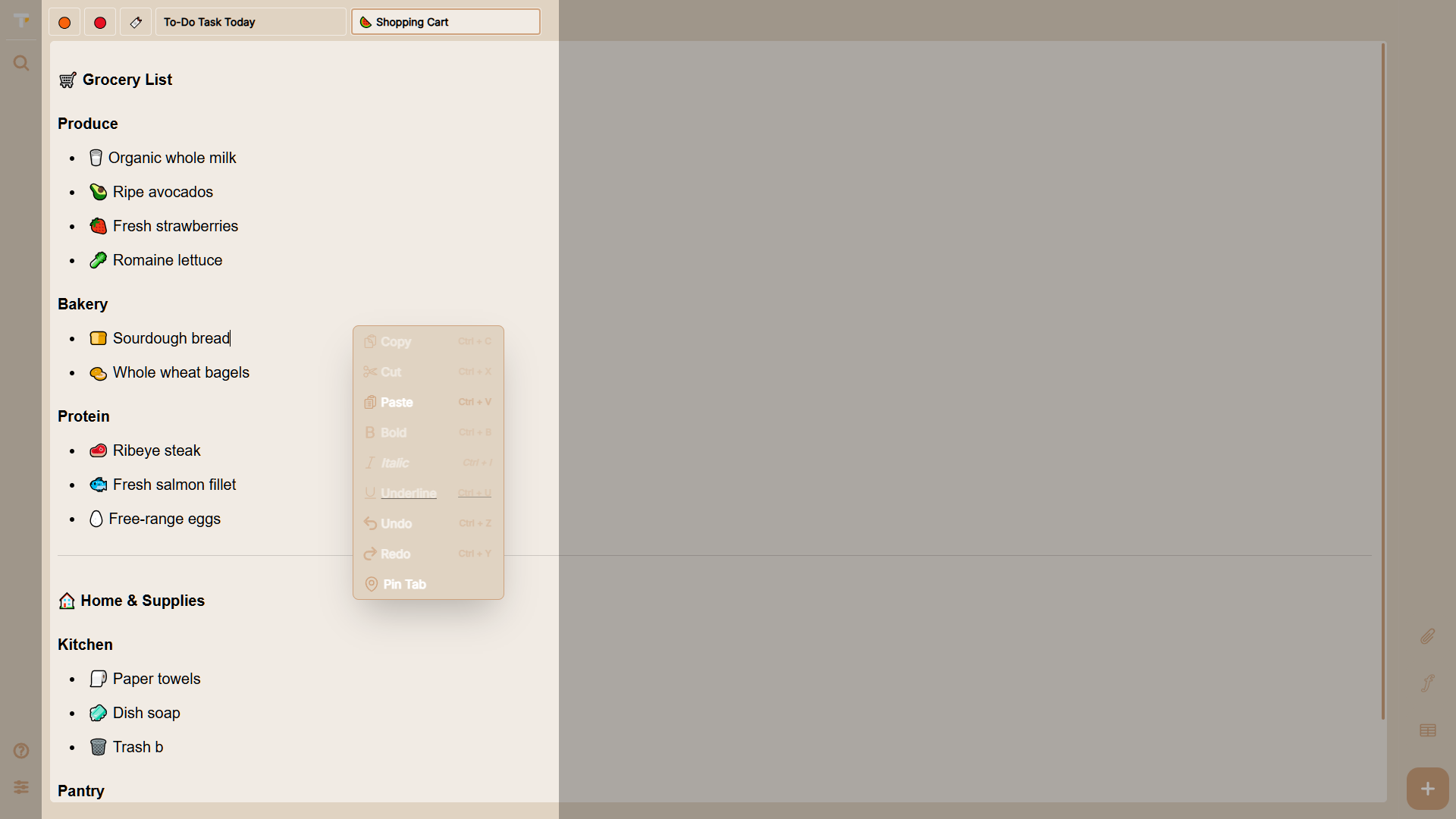
Section titled “Context menu”Right-click inside the editor to open the context menu:
| Group | Actions |
|---|---|
| Edit | Copy Ctrl+C, Cut Ctrl+X, Paste Ctrl+V |
| Format | Bold Ctrl+B, Italic Ctrl+I, Underline Ctrl+U |
| History | Undo Ctrl+Z, Redo Ctrl+Y |
Items that need a selection (copy, cut, bold, italic, underline) are disabled when there’s nothing selected.
Code block layouts
Section titled “Code block layouts”Multi-line code scripts are formatted as block-level pre elements. When you type or paste code, TomaNote wraps it in a fenced Markdown code block (```) rendered as a standalone block with its own styling, kept separate from surrounding paragraphs instead of being treated as inline text.
- Monospaced font and a distinct background so scripts stand out from prose.
- Formatting shortcuts (
Ctrl+B,Ctrl+I,Ctrl+U) don’t apply inside a code block.
Links and hyperlinks
Section titled “Links and hyperlinks”Inserting a link
Section titled “Inserting a link”How the link modal opens depends on whether you have text selected:
- With a selection: selecting text and invoking the link action (toolbar or context menu) opens a focused modal with a single URL input. The selected text becomes the display text.
- Without a selection: the same action opens a custom two-input layout — Destination URL plus Custom display text. Fill both fields and confirm to insert the new link.
Following links in the editor
Section titled “Following links in the editor”Active links inside the live workspace viewport are clickable:
Ctrl + Click(Windows/Linux) orCmd + Click(macOS) opens the link’s destination.- Regular clicks keep the caret in the editor so you can keep editing the text.